Build Options Dialog
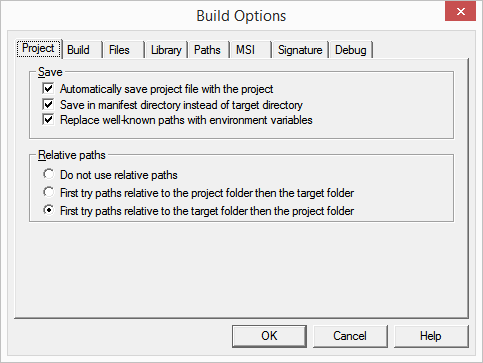
Save
These options control project file save operations.
- Automatically save project file with the project
- Windows guidelines require that Manifest maker should allow and suggest that you save your project files in the My Documents folder. This is impractical and highly inconvenient in corporate environment where assemblies are stored in central, shared locations. Check this option to have Manifest Maker automatically generate the project file name (from the assembly name) and save the project file in the target directory.
- Save in manifest directory instead of the target directory
- When building private or shared assemblies it sometimes desirable to save project files in the assembly directory, not in the target directory.
- Replace well-known paths with environment variables
-
When saving project information Manifest Maker
saves full absolute paths as well as paths relative to the location of the
project file. As the project is later reopened Manifest Maker can either try
to use the relative paths for project destination directory and project files
or it can just use the absolute paths. If this option is checked and the project
does not contain relative path information or the file cannot be located using
the relative path, Manifest Maker uses the absolute path. Clear this option to
force Manifest Maker to always use absolute paths.
This option is not available in older versions of Manifest Maker. Project files saved with earlier versions can be opened without a problem, but they do not contain relative path information. To add relative path information to project files saved with an earlier version of Manifest Maker just open and save the project.
Relative paths
These options control file search logic during project load. The best choice depends on your environment. Typically projects used with Visual Studio builds are best loaded using target-relative paths. This allows a "debug" build to pick up "debug" files and "release" build to pick up "release" files.
- Do not use relative paths
- Only file absolute paths stored in the project file are used.
- First try paths relative to the project folder then the target folder
- Try to load each file using path relative to the location of the project file. If a file is not found this way, try the path relative to the project target folder. If this still does not succeed, try the file absolute path.
- First try paths relative to the target folder then the project folder
- Try to load each file using path relative to the project target folder. If a file is not found this way, try the path relative to the location of the project file. If this still does not succeed, try the file absolute path.